I have been working with Robopack for quite some time now, and I have configured it in around 10-15 customer setups. This has provided me with a great deal of experience on how to implement Robopack in both existing Intune setups and brand new Intune setups. Robopack has a low of great features and I plan on going deeper with Robopack in another article, in this article though, I’ll focus on how you can download both the application package and the associated PDF documentation.
Downloading the application package and the documentation for the package has a few usefull purposes. One is to backup the content of your Robopack tenant. Should something happen to the Robopack tenant where there is a data loss, a backup of the latest application packages is a very nice thing to have and should make it easier to do a restore of the application packages or at least the application pacakage configuration. And as we all know, documentation is also a good thing to have and with Robopack every application package is documented in a PDF file containing relevant information about how to install and uninstall and how to configure a Intune detection rule.
Besides backup and documentation, another purpose could be that you want to use the application packages from Robopack in a traditional image building process, like a custom image for Windows 365 or Azure Virtual Desktop downloading the application packages directly from Robopack and use them as a part of your image build process. This ensures that you are always using the latest application package version on both Intune managed devices and Windows 365 and/or Azure Virtual Desktop devices with custom images.
Let’s take a close look at the Powershell script and how it works.
Prerequisites
- Robopack API key
- Powershell 7.x
Obviously, you’ll need a ful functioning Robopack tenant. If you currently don’t have that at your disposal, contact one of the Robopack partners, they can setup a fully functional 14 days trial tenant for you.
With access to a Robopack tenant, you must create an API key to be able to communicate with your tenant using the Robopack API interface.
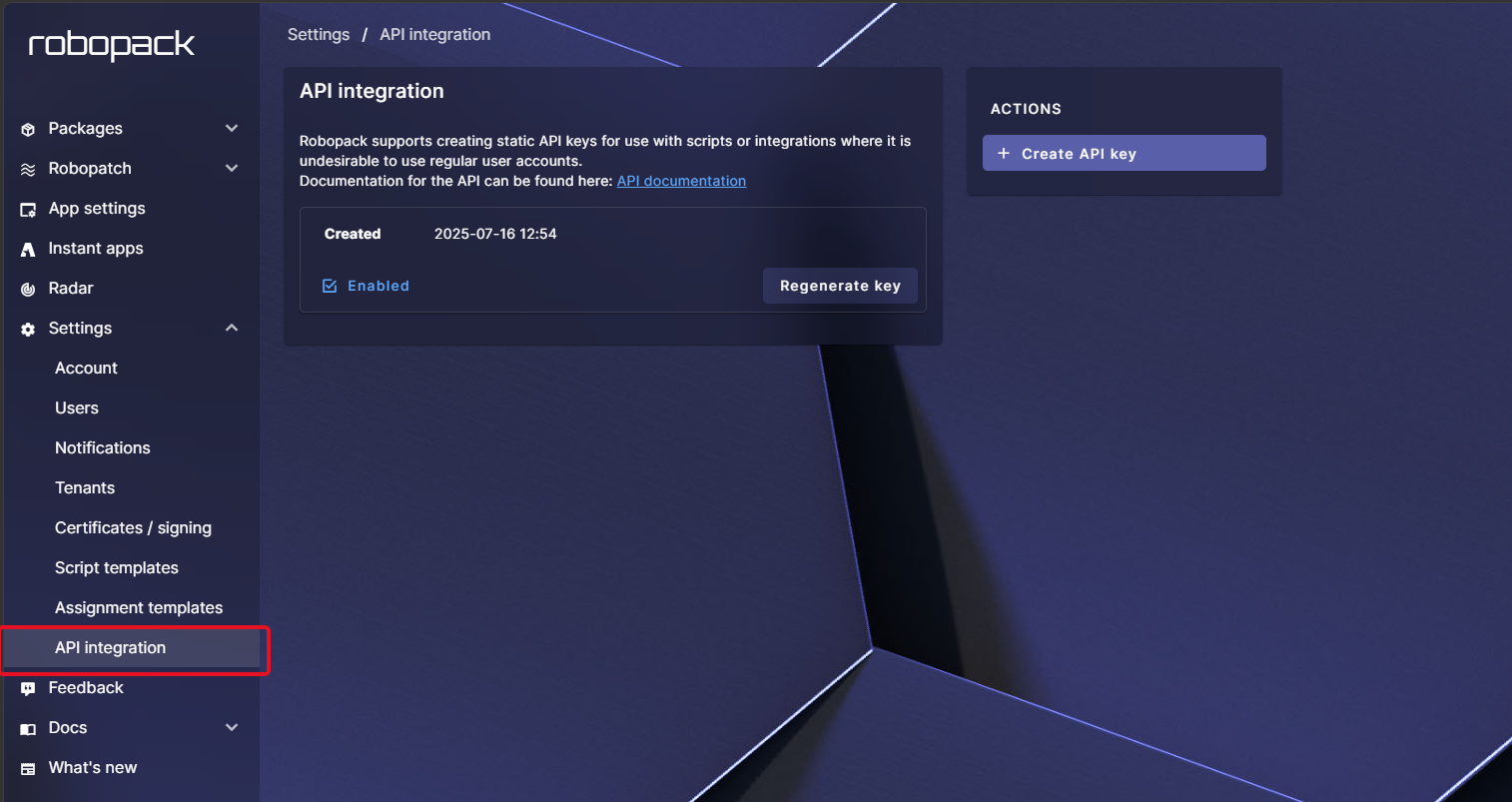
Login to your Robopack tenant with a user that has the “Organizational Admin” role and go to Settings and click API integration:
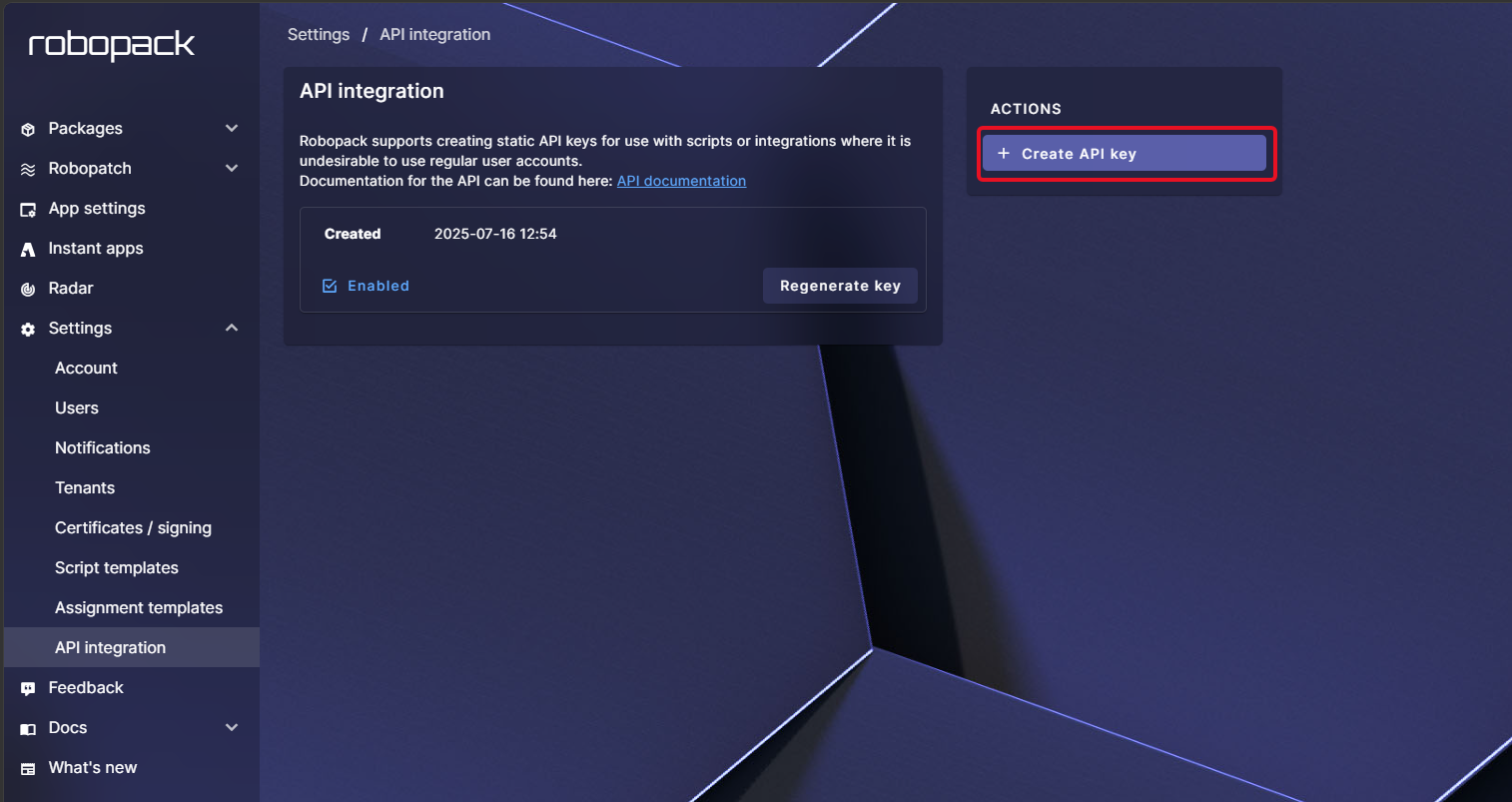
In the Actions box, click Create API key:
A new Windows pop up, click the Create API key button:
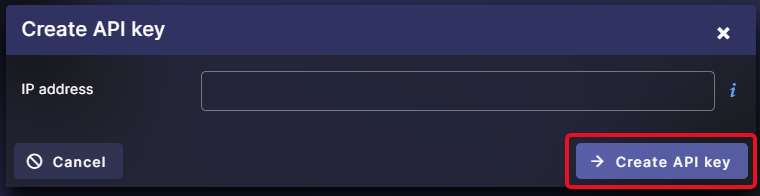
If you want to restrict the API communication to allow only a specific IP address, type the IP address in the IP address field. If you don’t type an IP address, API communication is allowed from any IP address.
The new API key is presented in a new window. Copy the API key and store it in a safe location, as stated you will not be able to retrieve the API key once you have closed this window:
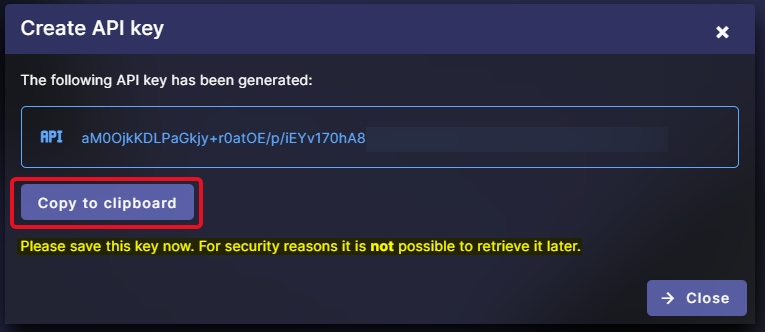
For security reasons, parts of the API key in the screenshot above have been blurred out.
You should now have a list of API key objects:
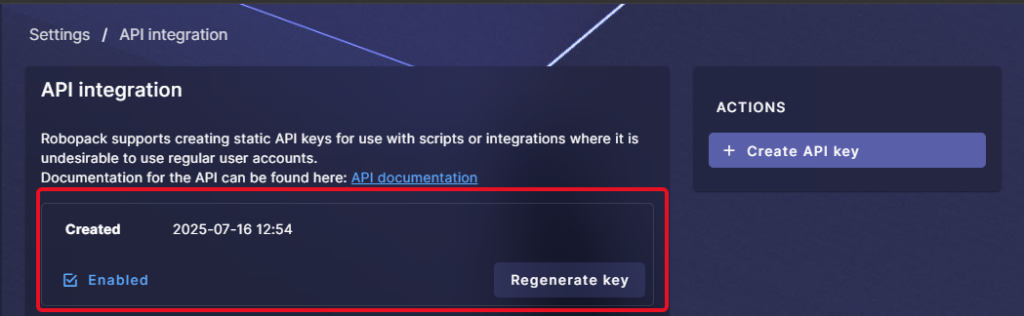
From here you can see when the API key has been created, you can disable the API key, and you can regenerate the API key if needed.
You are now ready to execute the script in Powershell 7.x.
The script
I will not do a complete rundown of the script however; I will cover a few features and how to make use of the script. As a disclaimer I want to mention that this script is partly created using AI (Claude), partly meaning that some parts of the scripts are created by myself, I have used AI to optimize and improve certain parts of the script essentially making the code faster and better.
The script is in in my Github here:
https://github.com/kaspersmjohansen/Robopack
The script contains examples on how to use it however; I’ll show a few ways the script can be used below.
Downloading the latest version of all application packages
Download the latest version of all packaged applications using the command – .\Download-Robopack-PackageApps.ps1 -APIkey “your_apikey_here” -DownloadFolder C:\temp -AppLatestVersion:
As you can see in the screen recording, downloading the latest version of all the application in my Robopack tenant takes around 7 minutes, this may vary in your Robopack tenant depending on connection bandwidth and the amount of application packages.
All the latest versions of all the application packages from my Robopack tenant are downloaded to the C:\temp\RobopackApp folder:
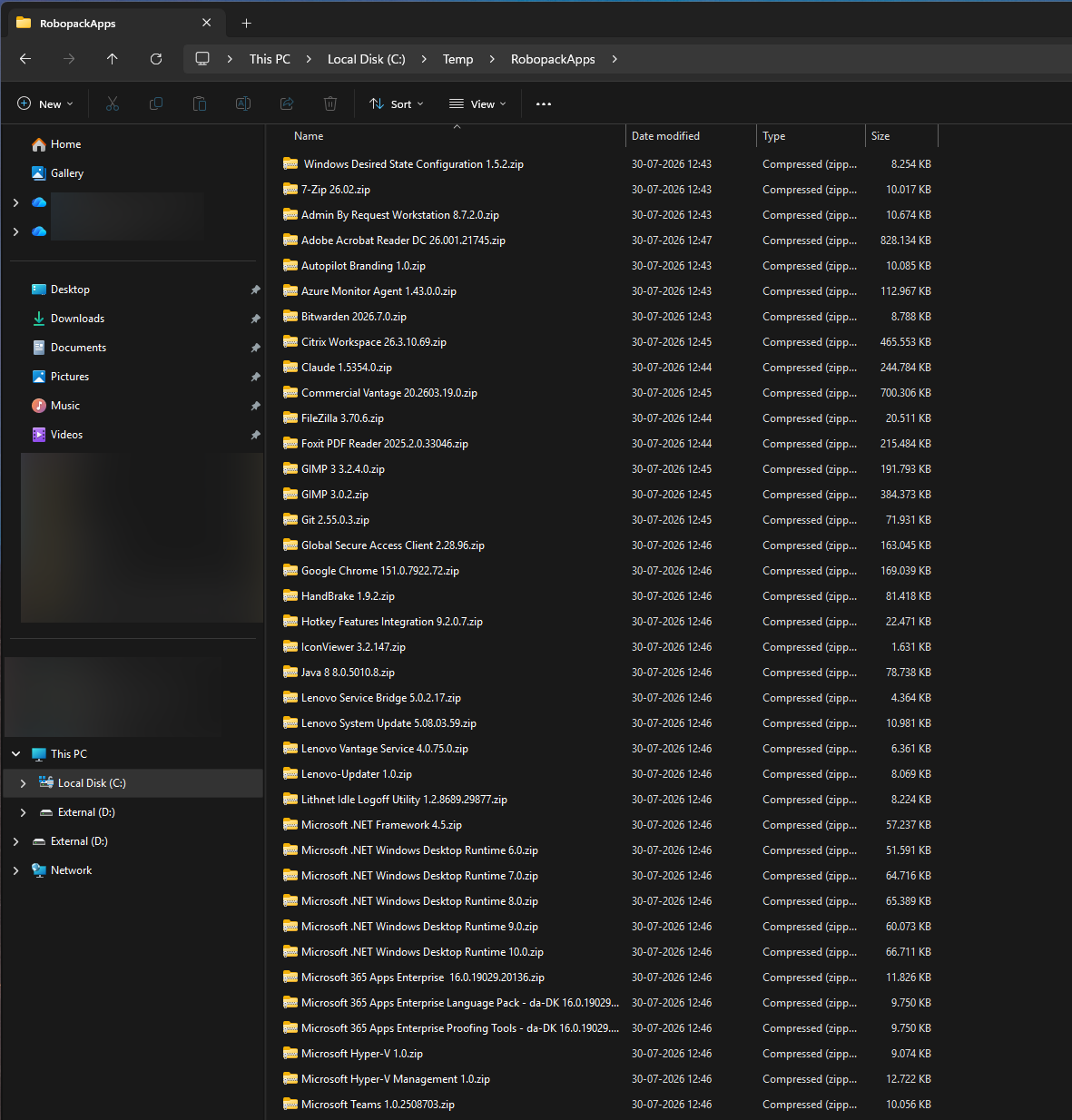
Within each of the ZIP files are the entire application package including the source setup file for the application and any customizations needed.
Downloading the documentation for the latest version of all application packages
Download the documentation for the latest version of all packaged applications using the command – .\Download-Robopack-PackageApps.ps1 -APIkey “your_apikey_here” -DownloadFolder C:\temp -AppDocumentation:
This time the script is quite a bit faster as it’s only PDF files for the latest version of the application packages that are downloaded.
The application packages documentation PDF files are downloaded to the C:\temp\RobopackAppsPDF folder:
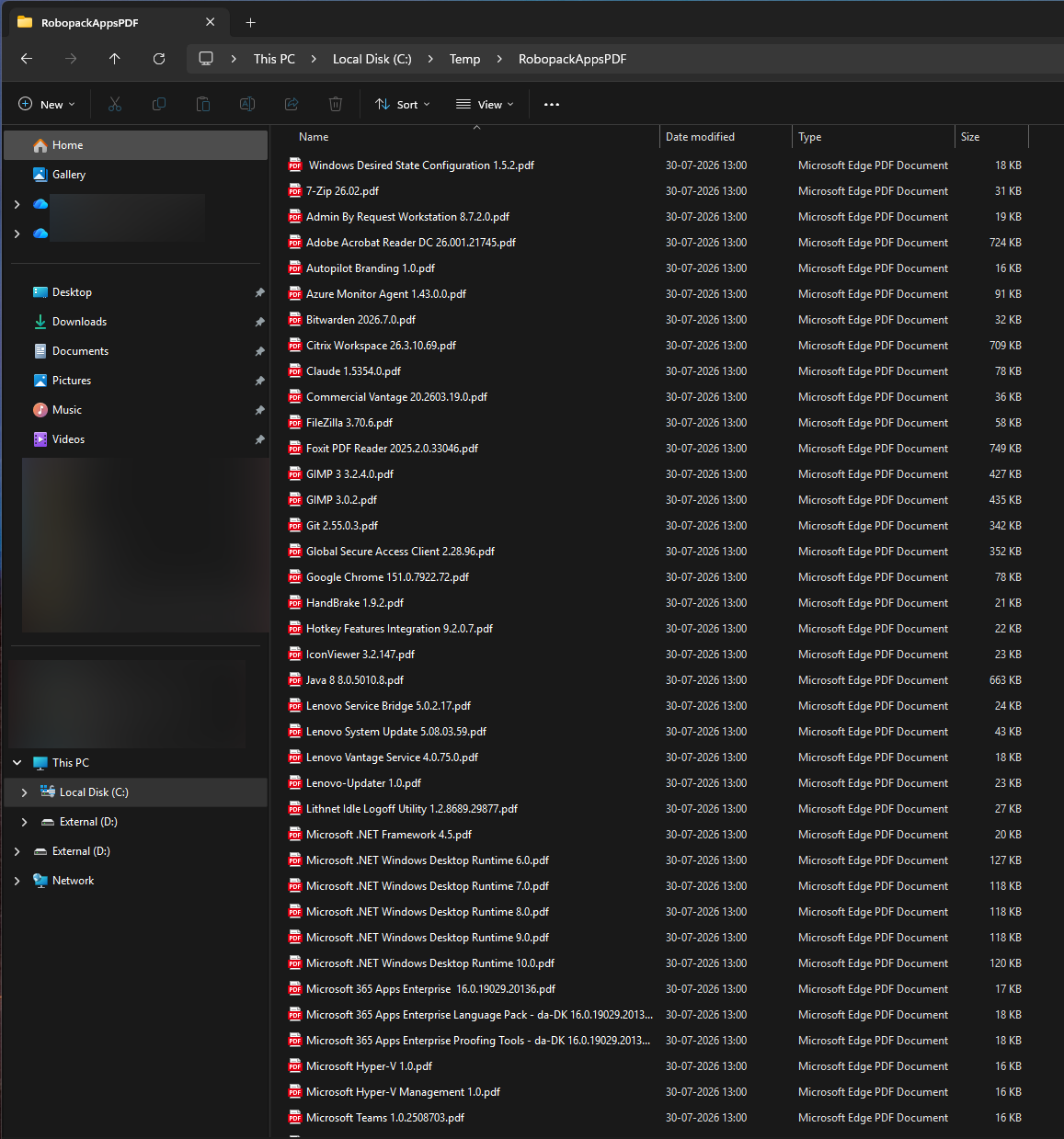
Each PDF file contains the documentation for the individual app.
Downloading specific applications based on a CSV file
When building custom images for Windows 365 and/or Azure Virtual Desktop, you may need specific apps to be a part of the custom image. For this scenario you can use a CSV file, the script will download the list of applications provided in the CSV file. I have provided a sample CSV file in the Github repository mentioned earlier.
Download a list of packaged applications using a CSV file via this command – .\Download-Robopack-PackagedApps -apikey “your_apikey_here” -CSVfile “C:\robopackapps.csv”
This will download the packaged applications listed in the CSV file the same way as before, where you will have one or more ZIP files containing the individual packaged application.
This concludes the article. Feel free to reach out to me on X or on LinkedIn if you have any comments or questions.